How to use the monitor?

Hi,

I’m strugling with the monitor …

My ‘end goal’ is :
to create a setup with the merging of 3 midi-inputs and (if possible) a changing/selecting output to one of the 4 midi-outputs done by a default CC (maximum value 0 to 4).

Yet…
I can’t get the simple thing working : make the monitor show the incomming midi data.

I know much about midi, but am a beginner on the midihub.

Thanks

P.s. I currently work on a resent apple computer.

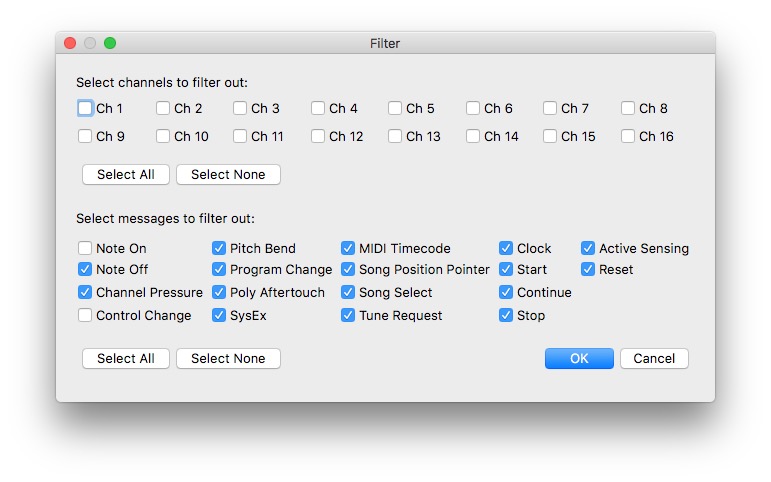
First check that your Monitor>Settings…>Filters is set to what you want:
Screen Shot 2022-10-18 at 23.47.16
(in this one I’m only seeing Note_on & CC on all channels)
On my Mac it’s a bit funny in that SelectAll/None doesn’t appear to do anything but it does.

What you’re trying to do sounds straightforward. If you upload your patch, someone here will likely try it & post back what Midi Monitor should look like.

other things to look at:

  • Check that LEDs are flashing to show I/O for the 2x4 MIDI DINs and/or the USB connection
  • Just to simplify your testing, try adding an LFO pipe so you can see internally created CCs going into and out from Virtual pipes

Two last things that still trip me up:

  1. Monitor shows what goes in & out of a given pipe. Sometimes I forget to select one!
  2. I might start testing some new changes, only to find I’m getting no monitoring cos I haven’t actually clicked Connect!
1 Like

Hi,

Got it.
As I wished to see anything appearing in the monitor I disabled all filters.
Now selecting the input which should receive midi-data, it is shown in the monitor. YEAH THAT’S IT.
Why I didn’t get it before, I don’t understand, but that problem is gone, so forget it.

I still wonder how I must get fixed a selecting of the midi-output with a controller value (1 to 4 or 0 to 3)…
There doesn’t seem to be a ‘switching-pipe’ between outputs (not channels).

Any idea ?

Thanks.

yeah, that’s the trickier part of your task.

If I understand you, you want to turn a knob or press a button and have that change the MIDI_out.

If so, first thing is to see what value range you need:

  • connect a MIDI controller
  • click Map on MIDI Output>Destination
  • move a control
  • make a note of CC values that cause changes in the Destination value; MIDI_A … Virtual_H
    (not hooked up now, but guess it’s 0,8,16…)

Now, if you’ve got a controller that can set a range smaller than 0-127, then that’s the easiest way.
If not, tell us what you have; there have been a few solutions to similar problems that I can point you to.

1 Like

Easy Peasy.

Input pipe>transform pipes x 5>filter pipe>output pipe.

In the 1st transform pipe you want to set it to ccs into notes.(or you can use ccs if you prefer). If you use notes activation is snappier when sending multiple values at the same time but you’ll have to sacrifice a midi channel. If you use CCs you can keep it on the same channel but bulk sending CC values has delays.

Set the “work with CC” to the CC of the control x you want to use.

Set “Arg 2” to 63

Map the transform “Arg1” to the same control x

Map the “work with value” high and low arguments to the same control x

If you are using notes set channel to your sacrificial midi channel.

In the next transform pipes set them all to cc into notes.

Set the “work with cc” to control x.

Map control x to the “Arg1”

Set “Arg2” to 65.

Set work with value to 1-3, 2-3, 3-3,0
Set the value only ranges to outside range.

Create 4 pipelines with your outputs.
Map notes :1 note, 0-3 to each bypass of the final output pipe in each pipeline.

Now you should be able to scroll toggle the bypass on each pipelines leaving only one active. You activate multiple at the same time by mapping more notes and have them mapped to the same bypass but you’ll need to adjust the work with values in transform pipes.

If you have trouble with this I’ll try to whip up a sketch when I can later. But it’s best you go through the steps yourself to get a better understanding of what each argument is doing and how you can use it to suit other needs.

Just to summarize
You are transforming a cc value to a particular note and either value 65 or 63 which will activate or deactivate a bypass. Which note and on and off depends on the value of control x. When control x is not in that value range it will send value 65 to activate all other bypasses except the one of the value you are in.
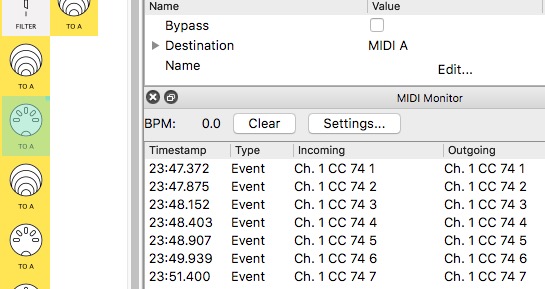
Edit you may have to play with the outside range values. I can’t check at the moment on patches I’ve made with this pipeline toggling. I don’t recall if you need to set the outside low range to control x. But the key to making this work is setting the outside range values.

hey, JB, doesn’t this need a physical loopback?

Yea your right it needs a physical loop back so one port is lost. A necessary sacrifice until we can internally map.

“Easy Peasy” … you are joking yeah ?

Before I investigate time (in my old days) to understand what you try to explain …
I’ll explain more what I wont (it is simple … yet to create with midihub, I don’t know).

  • Midihub has 4 hardware inputs and 4 hardware outputs.
  • I wont to use one midi controller (external from my other hardware), for example CC127 and give it a range of 0 to 3.
  • When this CC changes arrives on one of the midihub inputs, all midi data will go to the midihub output according the CC value
  • So CC127 with value 0 will (activate) make all incomming midi data now only going to midihub output 1.
  • CC127 with value 1 will (activate) make all incomming midi data now only going to midihub output 2.
  • CC127 with value 2 will (activate) make all incomming midi data now only going to midihub output 3.
  • CC127 with value 3 will (activate) make all incomming midi data now only going to midihub output 4.

That’s it, a simple switching with 4 positions. Nothing else.

Thanks

@jnm2 So just to get really clear:

  1. to get from value 0 to value 3 with a knob/fader, you have to go via 1 & 2. So via Midihub_2 and Midihub_3. In some contexts this would be unacceptable, in others OK. Yours?
  2. does it have to be 0,1,2,3 or will 0,8,16,24 be OK?
  3. what about values 4,5,etc (– or in my example, 32, 40, etc)? is it acceptable to allow values that will select outputs you don’t want?
    (this is why I asked about your controller: I have a few which I could set to restrict to the desired range. I have others where successive button clicks will cycle thro values. What about yours?)

What Joey was hinting at was a solution which will do what you want regardless of your controller’s capability. It would, however, be a bit of a jump given you’re just starting with Midihub.
And it would involve tieing up an in & an out for what’s known a s a loopback

If I know what your controller button/knob/faders can do, then maybe we can help you avoid this on your first outing!

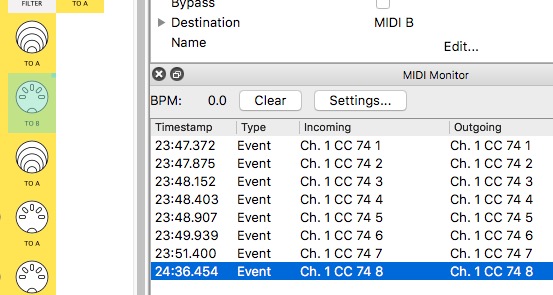
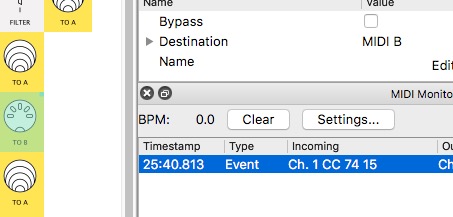
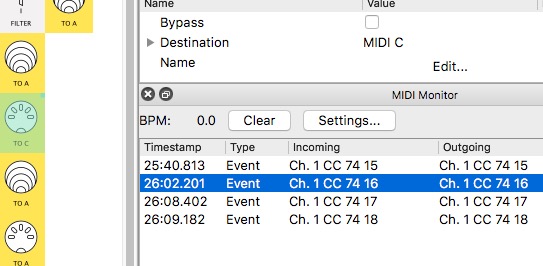
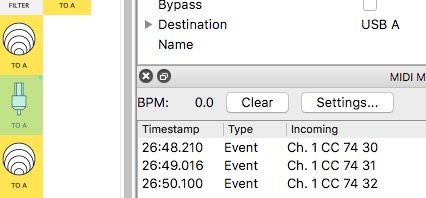
This what I meant by testing it out:
the following shots show the best you can do without a loopback or a ‘settable’ control


now B>

still B>

now C>

but also…>

try it yourself.

Low tech, I’d go for this and some marks on a bit of tape…
…with a big red line meaning “go No Further!”

Trust me, for the true capabilities of Midihub this is pretty simple. If you want a always works, no fuss solution, this will get it done. If you go without the loop back then you’ll have to set things up in your device and have a midihub patch plus deal with drawbacks and limitations. If your device crashes or resets at the wrong time , you’ll likely have to set things again. If you set it all up in the Midihub all you ever have to do is turn MidiHub on and it will always work flawlessly.

Once you understand the transform pipes everything else falls into place. Your end goal sounds simple yes but since what you want to do has not yet been programmed to do natively, you have to build the solution yourself.

It may seem a bit daunting at first but I’ve guided you through what needs to be set and values, so you don’t have to go stumbling through the forest blindly.

Keep in mind that Midihub at its simplest is a utilitarian device yes, but it’s creative possibilities are endless, but first you have to understand how to accomplish the simplest things within its current limitations. For my mind switching outputs is just a start of where I would go. Imagine switching outputs that have all kinds of midi effects and lfos and pitch transpositions and etc etc. It’s imperative to get inside of each pipe and tinker with everything and very little will seem complicated once it clicks.

Sorry, but … as it becomes complicated …
(I really don’t like complicated stuff anymore. For years I made very big complicated environments in Logic, but that time is over.)

I decided to start with only two outputs to switch to. 4 is less important and only more usefull to have a simple setup for using all connected stuff.

If I can switch between the 8 midihub-presets with an external midi-command, my choice is already made. Even then, I can use 4 presets for the full use of my setup.

Yet in the documentation, nothing is written about midi recieve for changing presets ?
This is basic stuff I should think ?!

Use Program Change messages, numbers 0 - 7 (or 1 - 8, if 1 is the lowest progarm number on your device / PC app that sends the program changes) on the port and channel configured in Device → Settings.

1 Like

Thanks.
I looked in the documentation under memory and under button, did a search for recieve … found nothing. But ok, you gave me the answer.

It seems missing from our docs, we’ll note to document it.