Hey there, the idea is send midi message to octatrack for pickup machine; record, play/stop, erase. which I believe they are equal to;
For pickup;
C#4 (61) INAB rec(Record)
D4 (62) INCD rec (Play/Stop)
D#4 (63) SRC3 rec (Erase)
I made simple chain that take PODXT Live (MIDI Ch 1) Bank23A midi input which results in ch1 Scale with CC7 in midihub however when I press same Bank23A button it doesn’t worked then I changed the mode into Toggle and it can send the message to desired midi out
CH Remap (podxt midi CH1 > CH3) for Octatrack Track3(Which is my PickupMachine Midi CH:3)
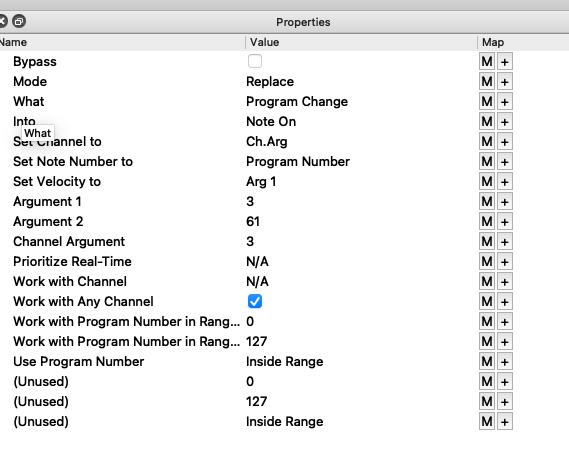
Transform for;
CC replace into Note On
Which we talked earlier 61 on octatrack standard midi appendix settings is equal to C#4 (61) INAB rec(Record)
Work with CC number 7 to 7
It worked. When I press my PodXT Live on Bank23a, it will start recording on Octatrack Track3 Pickupmachine (C#4 (61) INAB rec(Record)).
Here is the Problem part:
Sadly when I press any other bank23b or bank25a, etc it always result in same CC7(0-127) which will always triggers initially record.
Therefor I can’t able to map the next parts (D4 (62) INCD rec (Play/Stop)
D#4 (63) SRC3 rec (Erase))
due to when I press any of the PODXT Live bank slots it will always trigger CC7 which result in first mapping that I’ve created (C#4 (61) INAB rec(Record))
Is there any solution for this kind of problem?
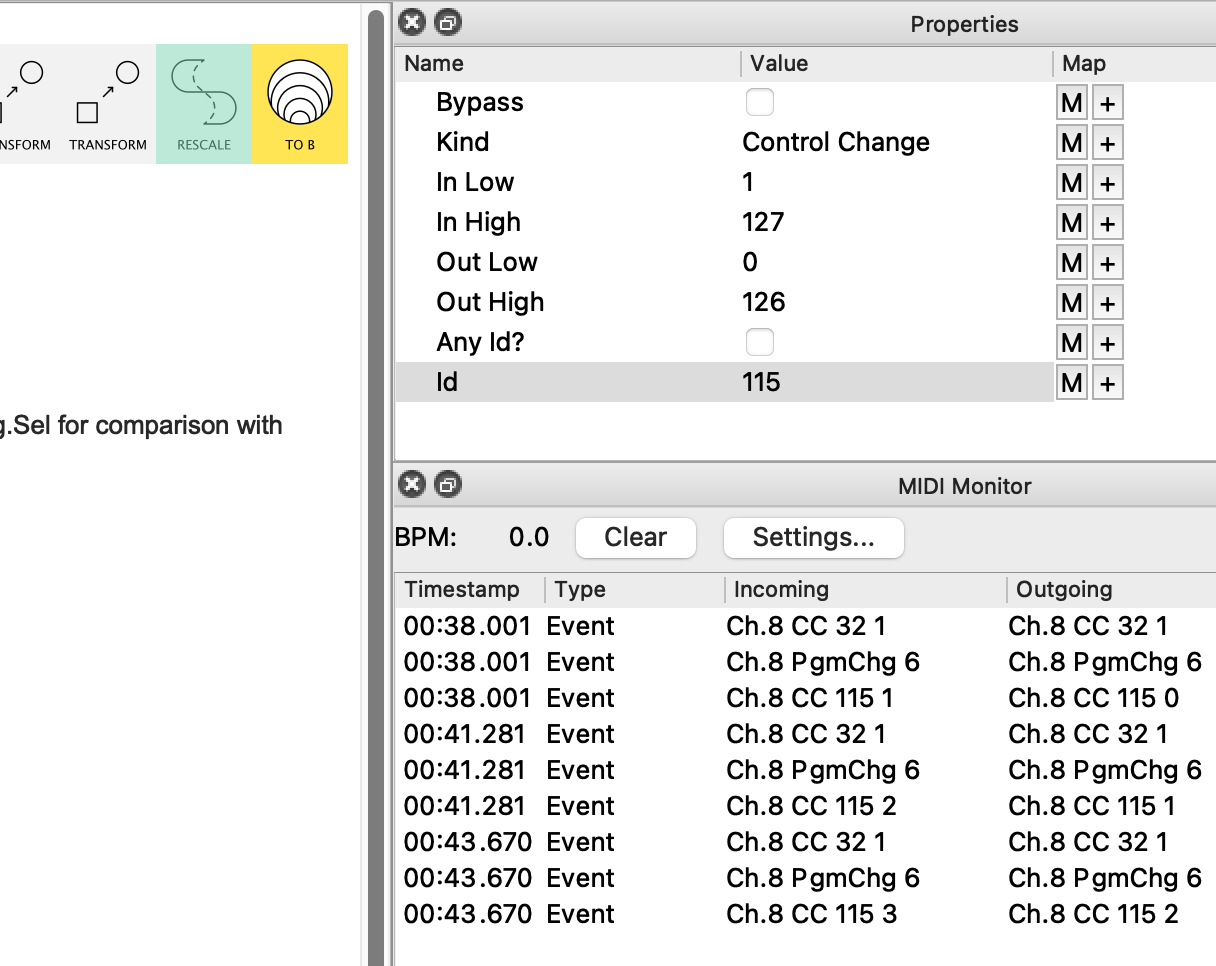
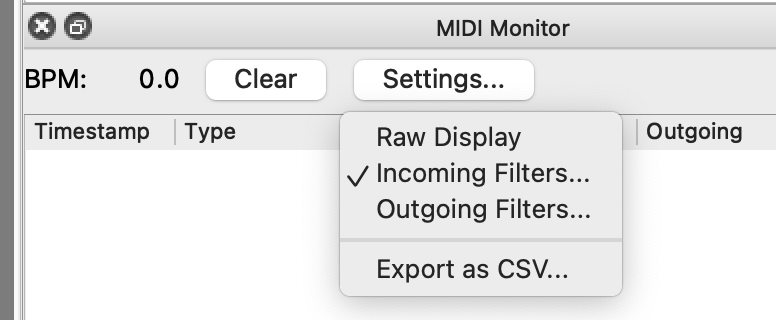
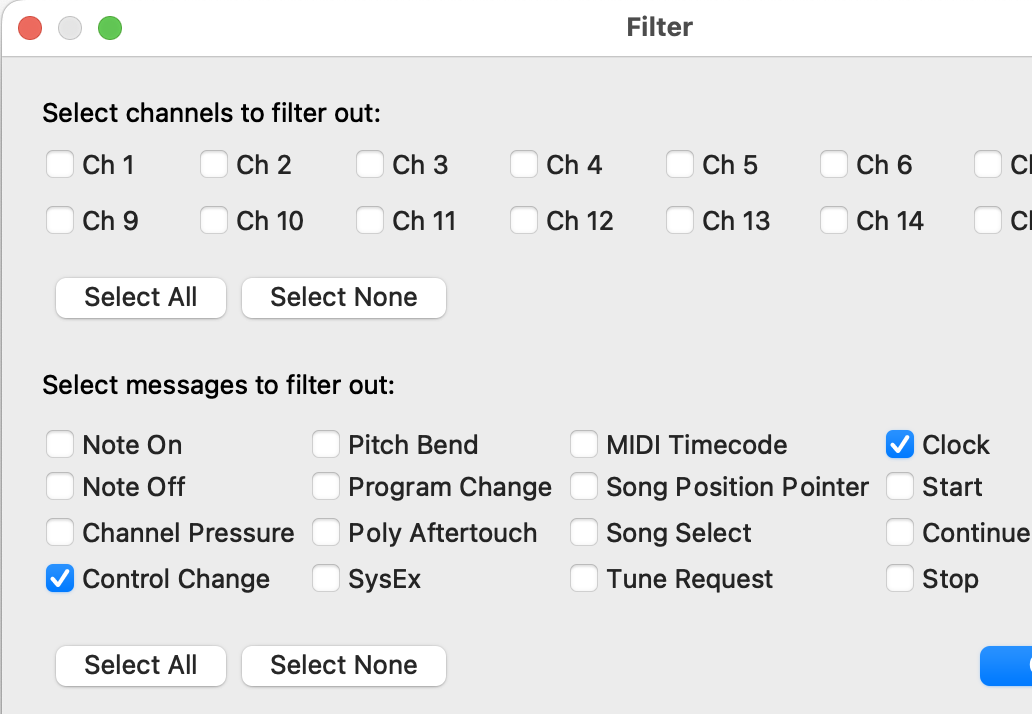
Also I can’t able to MIDI Monitor greatly, it’s not showing properly the PODXT Live midi messages but Midihub hardware is blinking when I press any of the buttons of it, and I can see on the Octatrack Midi In blinks too, so there is message going around but I can’t diagnose which message is coming in properly so wanted to ask you guys,
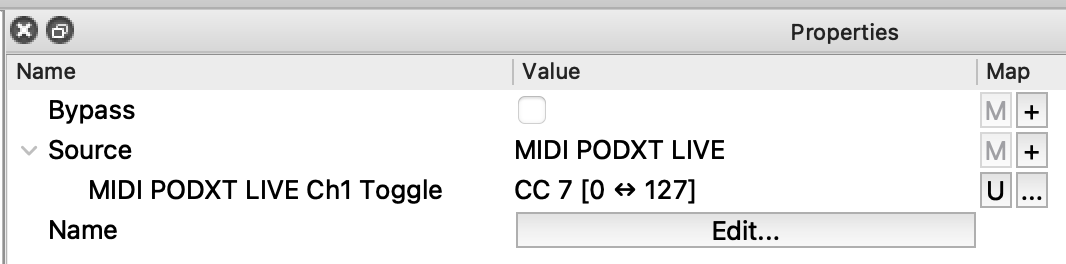
Maybe MIDI PODXT LIVE Ch1 Toggle CC 7 [0 <>127] which might contain some value somewhere so I can use that to differentiate on pipeline then I can use that 3 mapping that I want.